CFO / Boardroom Center
A single section of BizBooks Pro for watching the financial health of the business and producing board-ready reporting. This guide walks through each of the ten tabs, then the complete board pack workflow.
Opening the Center
Click CFO / Boardroom Center in the left sidebar. The page opens on the tab you used last; the first time, it opens on Overview. Tabs run across the top: Overview, Cash Forecast, Scenarios, Budget vs Actual, Covenants, Risk, Profitability, Close, Tax Reserve and Boardroom. You can move between them with the mouse or the left and right arrow keys.
- Plan: included on Professional and every higher plan. On Basic the item shows a lock; clicking it explains what an upgrade adds and offers the upgrade.
- Who sees it: administrators and the owner always. Anyone else needs the CFO Center permission — see Outside CFOs & Access.
- Sidebar badge: a red number on the menu item counts KPI tiles that are off target, so you notice a problem without opening the page.
Most tabs have an As of date picker and a Today button. Figures are calculated on the accrual basis, so open invoices and bills count even if your reports default to cash basis; the line under each heading states the basis and the dates used.
Overview & KPI Targets
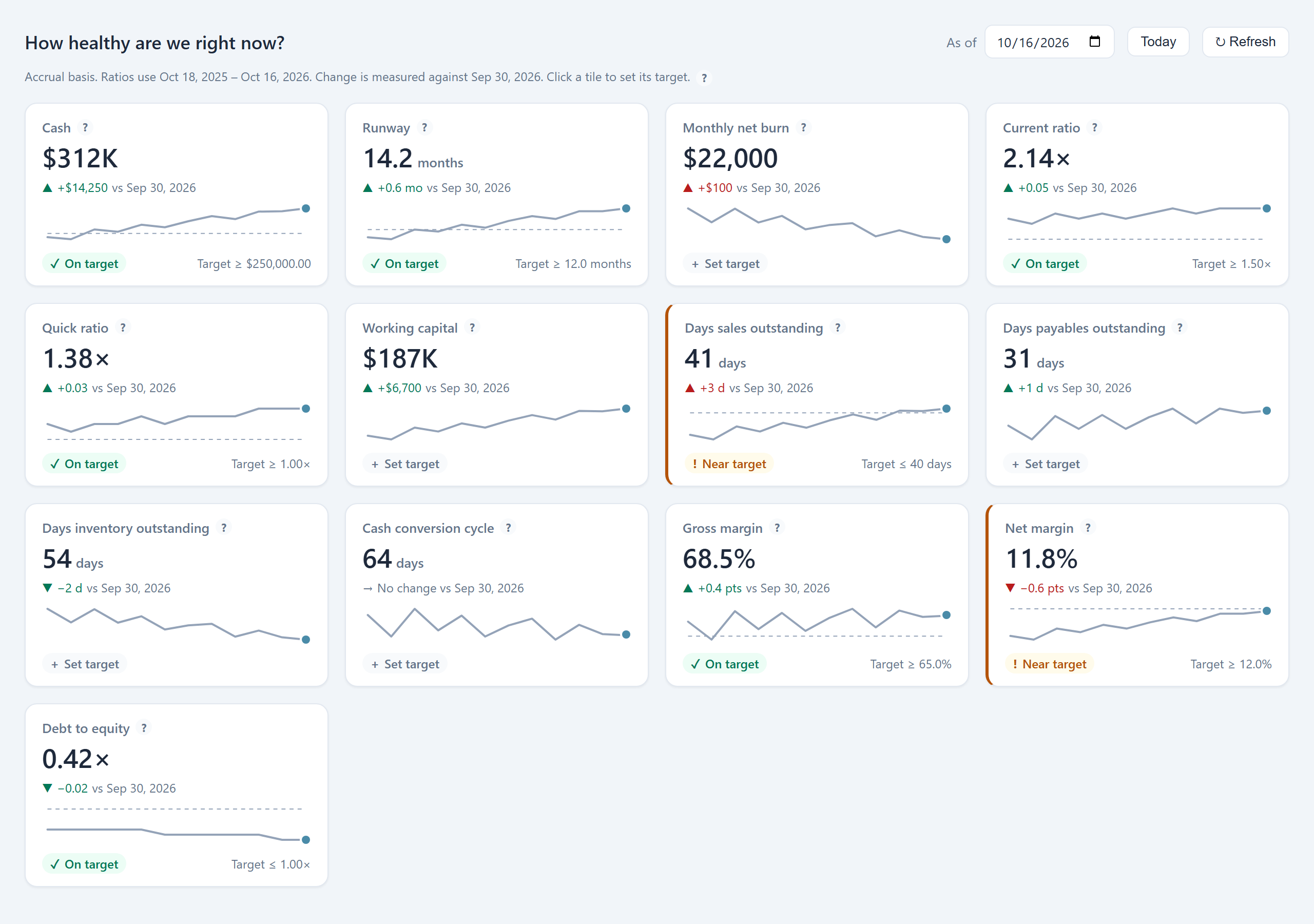
The Overview answers “how healthy are we right now?” with thirteen tiles.
| Tile | How it is calculated |
|---|---|
| Cash | Total of all bank accounts at the as-of date |
| Monthly net burn | Average monthly fall in cash over the last three months; negative means cash grew |
| Runway | Cash ÷ monthly net burn; shows Not burning when cash grew over the last three months |
| Current ratio | Current assets ÷ current liabilities |
| Quick ratio | (Cash + receivables) ÷ current liabilities |
| Working capital | Current assets − current liabilities |
| DSO (days sales outstanding) | Receivables ÷ trailing 12-month revenue × days — how long customers take to pay |
| DPO (days payables outstanding) | Payables ÷ trailing 12-month cost of goods sold and operating expenses × days |
| DIO (days inventory outstanding) | Inventory ÷ trailing 12-month cost of goods sold × days; Not applicable when you carry no inventory |
| Cash conversion cycle | DSO + DIO − DPO |
| Gross margin | (Revenue − cost of goods sold) ÷ revenue, trailing 12 months |
| Net margin | Net income ÷ revenue, trailing 12 months |
| Debt to equity | Total liabilities ÷ total equity |
Each tile shows the change since the prior month-end and a 12-month sparkline; hover the line to read any month. The ? beside a tile name shows its exact formula.
Setting a target
- Click a tile (or press Enter on it).
- Enter the target value and choose whether the figure should stay at or above or at or below it. The sensible direction is preselected.
- Save. The tile now shows a dashed target line on the sparkline and a status: On target, Near target or Off target.
Cash Forecast
The rolling 13-week forecast lives here as a tab. It projects your bank balance from open invoices, open bills, recurring transactions and adjustments you add, and times customer receipts by each customer’s own payment history. Weeks that go negative are shaded red; weeks under your chosen floor are shaded amber. Creating and tuning forecasts is covered in full in Cash-Flow Forecasting.
Scenarios
Scenarios answer “what if we change something?” by layering adjustments on top of the 13-week forecast. If you have no forecast yet, the tab offers to create the standard one in a click.
- Click + New scenario and give it a name, such as “Hire two roasters in November”.
- Add one or more adjustments:
- Hire — headcount, monthly cost per person, start date
- Price change — a percentage applied to projected (not already invoiced) receipts
- Lose a customer — removes that customer’s expected receipts
- New revenue or expense change
- Loan — amount, rate and repayments; only the interest affects profit
- Delayed payments — customers paying later than usual
- One-off cash in or out, such as equipment
- The result shows closing cash, the cash low point and when it occurs, runway, and the effect on profit, with a line per adjustment explaining how it was calculated.
- Save it. Tick up to three saved scenarios in the list and click Compare to see them side by side against the base forecast. Nothing in a scenario touches your books.
Budget vs Actual
Choose a budget and period to see actual results against plan by account, with the variance in dollars and percent. Any variance above your threshold can carry a comment; click the comment field on that row and explain it in a sentence. Comments are saved by period and account, and they appear alongside the figures when the report is included in a board pack. Budgets themselves are created in the Budget Manager.
Covenants
Use Covenants to track the financial promises in your loan agreements and see your headroom at any date.
- Click Add covenant.
- Choose the measure: debt service coverage ratio (DSCR), fixed charge coverage ratio, current ratio, quick ratio, minimum cash, minimum working capital, maximum debt to equity, maximum debt to EBITDA, minimum tangible net worth, or a custom figure you enter yourself.
- Enter the lender, the required threshold, the test frequency and the next test date.
- Set a warning margin — how close to the threshold you want to be warned.
Each covenant then shows its current value, the headroom remaining and a status. A covenant inside its warning margin is flagged before it is breached, which is the point of watching it daily rather than on the test date.
For the bank, include the covenant compliance certificate in a Lender Package board pack: it lists each covenant with the requirement, the actual figure, the headroom and the status. Covenants can also record test results you enter by hand, so the history of each test date is kept.
Risk
Risk answers “where are we exposed?”. Choose an as-of date and a review window.
- Customer concentration — the share of revenue from your largest customer and from the top 5 and top 10, against a guide line.
- Vendor reliance — spend with your largest suppliers, and any expense category that depends on a single vendor.
- Receivables — open balances by days past due, and expected collections over the next 30, 60 and 90 days, timed by each customer’s payment history where there is enough of it.
- Flags to review — unusual transactions worth a second look, such as a bill that appears to duplicate another (same vendor and amount within a week, or the same bill number), unusual round amounts, manual entries dated on a weekend or U.S. federal holiday, postings to rarely used accounts, or amounts far outside a vendor’s usual range. Dismiss a flag once you have checked it; dismissed flags can be shown again.
An optional Kantivo Core AI summary reads the pattern across these sections in a few sentences. It runs only when you ask for it.
Profitability
Pick a dimension — class, location, customer, product or project — and a date range to see revenue, cost and margin for each value. Totals reconcile to the income statement for the same period, with any untagged activity shown as its own line so nothing disappears. The breakdown depends on the tracking you record on transactions; see Class & Location Tracking.
Close
Close turns month-end into a checklist with an owner, due date and sign-off for every task.
- Open the month you are closing. The first time, BizBooks Pro fills the list from a standard set of tasks — reconciling bank accounts, clearing Undeposited Funds and suspense, reviewing AR and AP aging, posting depreciation, checking payroll and sales tax liabilities, reviewing for unbalanced or draft entries, and so on. Click Edit checklist to change the default list to match how your team works.
- Tasks the software can verify are checked against the books each time you open the list, and show whether they pass. The rest you tick by hand.
- Assign owners and due dates; each completed task records who finished it and when.
- When everything is done, sign off (optionally with a note) and lock the period. The lock date stops anything posting into the finished month.
The close history lists every month with when it was closed and by whom. Anyone with CFO Center access can Reopen month if a correction is needed, giving a reason; reopening is recorded, as is every change to the lock date.
Tax Reserve
Under Settings on the right, choose your entity type (C corporation, S corporation, partnership, sole proprietorship, LLC taxed as a pass-through, or nonprofit), the federal and state rates or a blended effective rate from your adviser, the bank account where you hold the reserve, the account where estimated payments are recorded, and optionally last year’s total tax.
The tab then shows:
- Estimated tax to date, what is reserved, what has been paid in estimates, and the shortfall or surplus.
- A full-year projection at the year-to-date pace.
- Quarterly due dates for your entity type with the suggested cumulative amount, what has been paid, and the gap at each date. Dates falling on a weekend or federal holiday move to the next business day.
For a C corporation the figure is the company’s own tax. For pass-through entities it is what the owners should set aside from the business’s profit, because they pay the tax personally.
How Board Packs Work
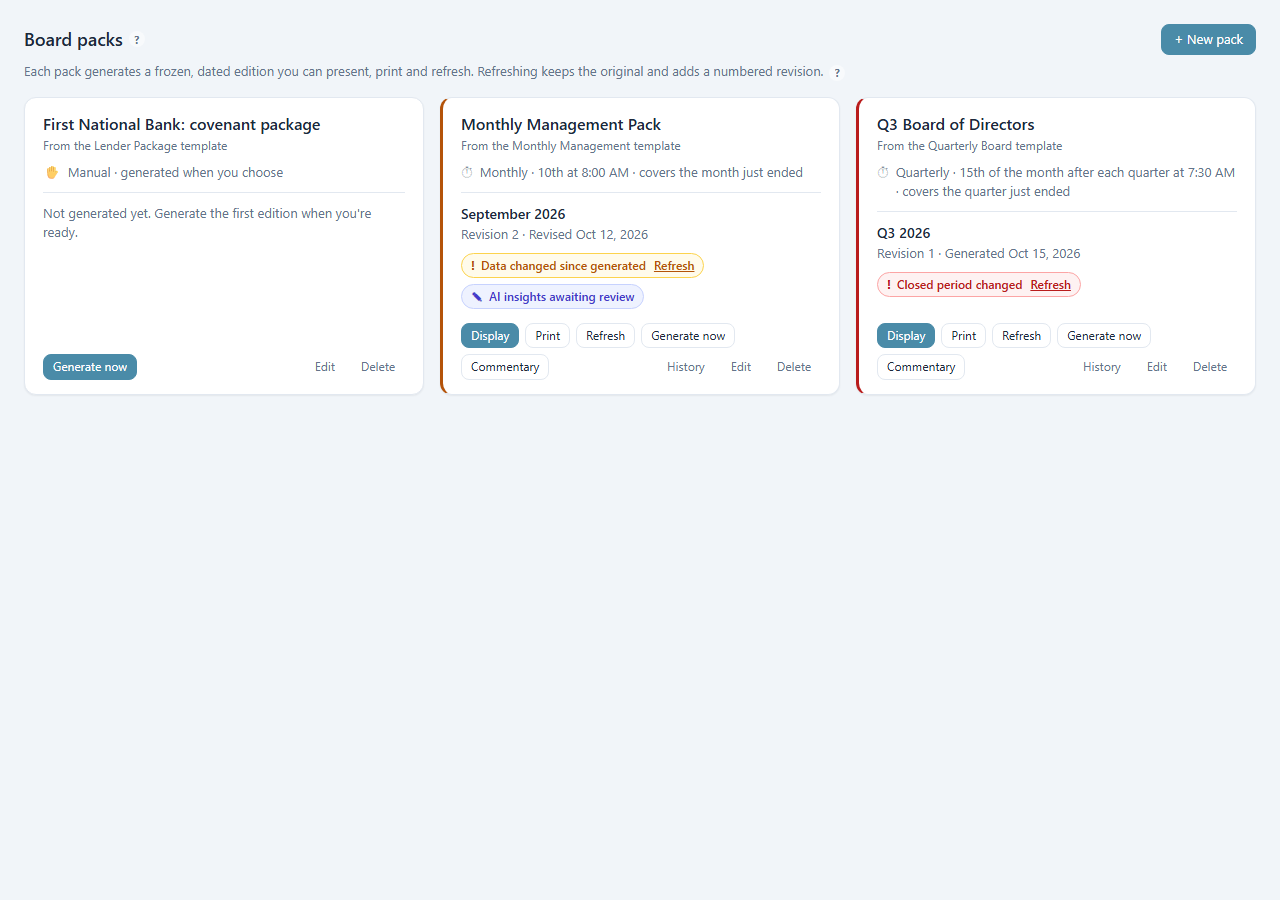
A pack is a saved set of reports with a cover, contents page and your branding — for example “Monthly Management Pack” or “First National Bank: covenant package”. Each run produces an edition for one period, frozen as it was generated. Regenerating an edition for the same dates produces a numbered revision; the original is never overwritten. A company can keep as many packs as it needs.
Create a Pack
- On the Boardroom tab, click + New pack.
- Choose a Template:
- Monthly Management — KPI summary, P&L vs budget, balance sheet, cash flow statement, 13-week cash forecast, AR aging summary
- Quarterly Board — commentary page, KPI summary, comparative P&L, balance sheet, cash flow statement, covenant status, risk summary
- Lender Package — balance sheet, P&L, AR and AP aging, covenant compliance certificate
- Blank — no reports; choose your own
- Name the pack and set Each edition covers: a month, a quarter, a year, or custom dates. Add comparatives such as prior period, prior year or budget.
- Under reports, tick the ones you want and drag them into order. Memorized reports can be included alongside the standard set.
- Decide whether the pack uses AI insights, whether they must be reviewed before sharing (on by default), and whether it has a commentary page.
- Set the Cover title, the Confidentiality line printed in the footer, and whether to show your company logo.
- Save.
Schedule It
In the same editor, set Frequency to weekly, monthly, quarterly or yearly (or off, for by-hand only), then the run day, the Time, and Each run covers — normally the period just ended. A monthly pack set to the 10th at 8:00 AM gives the bookkeeper time to finish the close first. Templates arrive with a schedule already switched on.
When a scheduled edition is ready, you get an in-app notice and a badge. If its AI insights need review, the notice says so.
Generate an Edition
Click Generate now on a pack card at any time. Confirm the period and as-of date, and BizBooks Pro builds the cover, contents, commentary page and each report. If Close shows the period as not finished, you are warned that the numbers may still change. The new edition appears on the card with its period and revision number, and older editions are kept under History.
Review AI Insights
When a pack uses Kantivo Core AI, each supported report gets a short written observation — for example that marketing spend grew faster than any other expense line. Every insight starts as a draft.
- Click Review insights on the card, or in Display mode.
- For each insight, edit the wording, delete it, or approve it. Approve all is available once you have read them.
- Only approved insights appear in the pack. If review is required, the edition cannot be shared until no drafts remain.
Click Commentary to write or edit the cover narrative for the edition — your account of the period in your own words. Commentary and approved insights carry forward when you refresh.
Display & Print
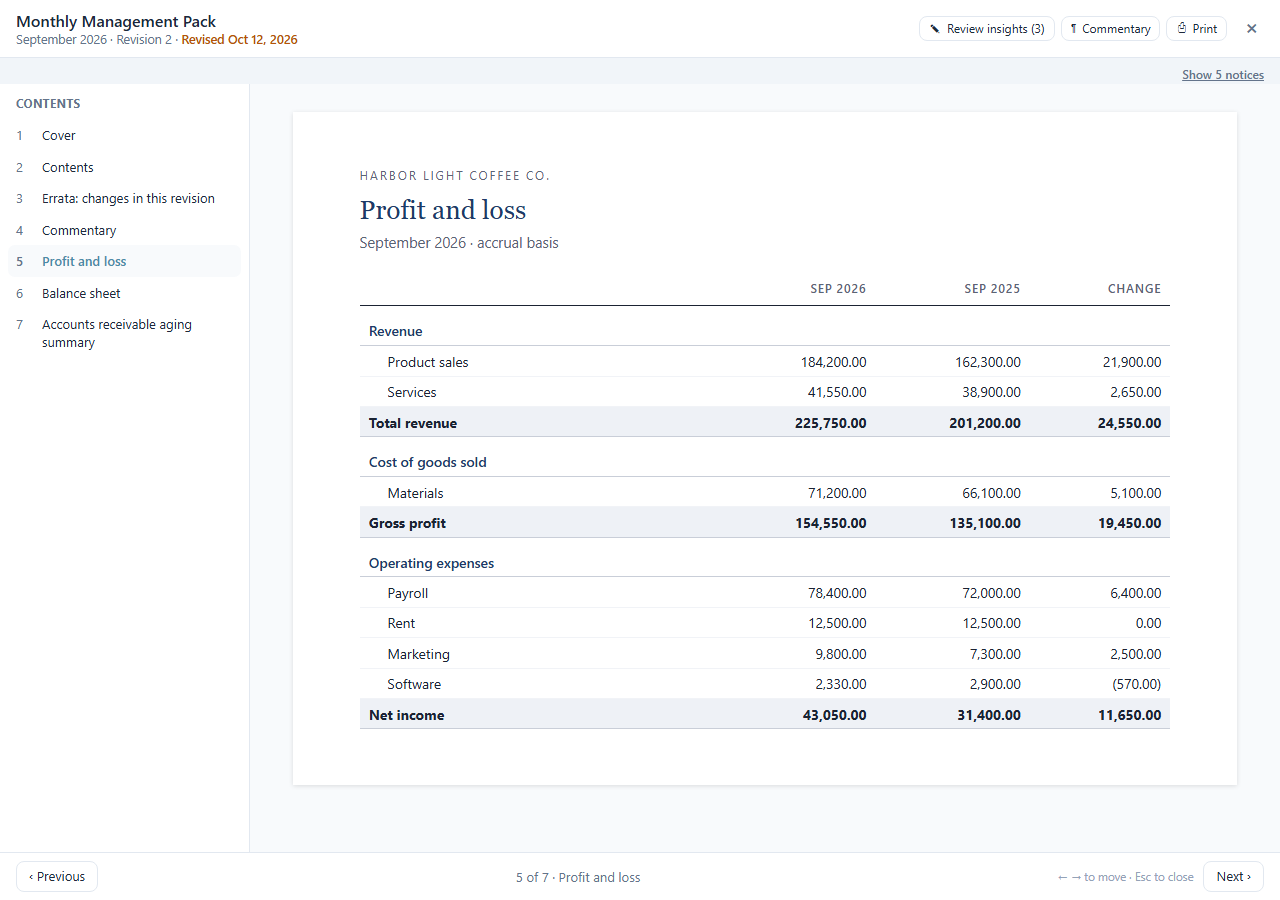
Display opens the latest edition full screen for the meeting room: one report per page, a contents list on the left, and Previous / Next buttons. Arrow keys move between pages and Esc closes. Notices such as “data has changed” appear above the pack and can be hidden while you present.
Print produces a print-ready version with a cover, contents and page numbers, and your confidentiality line in every footer. Choose your printer, or choose Save as PDF to file it or attach it to an email. Any earlier edition can be displayed or printed from History.
Refresh & Revisions
Each revision stores a fingerprint of the transactions in its period. If any of them is added, edited or deleted afterwards, the card and the display show Data changed since generated. If the period was locked in Close, the warning is red: Closed period changed. Nothing is regenerated automatically.
- Click Refresh on the pack card or in the warning.
- Confirm. BizBooks Pro regenerates the edition for the same period and as-of date using the data as it stands now, and saves it as the next revision.
- The new revision opens with an errata page — changes in this revision — listing each headline figure that moved, with its old and new value (for example net income 42,180 → 43,050).
- Its cover and page footers carry Revised and the date.
Revision 1 remains available in History exactly as it was first shown. AI insights on the new revision return to draft for another review, with the earlier wording shown alongside.
Share by Link or QR Code
Sharing uploads a frozen, read-only copy of one revision to the BizBooks sharing service, encrypted at rest, and gives you a link and a QR code that open it on any device. Only that pack is uploaded — never your company file or live data — and only approved AI insights are included.
- Click Share on the pack card, or on a row in History.
- Add a Label so you can tell links apart, such as “Board, October meeting” or “First National Bank”. Only you see it.
- Choose when the Link expires: 30 days by default, or 7 days, 90 days or never.
- Optionally set a PIN of 4 to 8 digits. Send it separately from the link. Five wrong tries lock the link for 15 minutes; repeated lockouts lock it until you unlock it.
- Under What the link shows, leave Link follows the newest revision ticked so viewers always see the latest revision, with a Revised banner and the change summary. You can instead have the link cover the whole pack, so one link or QR code moves on to each new edition — useful for a standing board. By default a link stays on one edition, so a Q3 link sent to a bank never turns into Q4.
- Click to create the link, then Copy it or show the QR code.
Shared pages are read-only, carry your confidentiality footer and are marked noindex so search engines never list them. Sharing needs an internet connection and a Professional-or-higher licence.
Revoke, Extend & View Log
Click Shared links on a pack card to see every link with its label, created date, expiry, whether it has a PIN, its view count and when it was last viewed.
- Copy link — copy it again.
- Extend — set a new expiry counted from today.
- View log — when the link was opened and on what type of device. No viewer identity is collected.
- Revoke — stops the link working immediately. Snapshots are deleted 30 days after a link expires or is revoked.
Revocations and view counts sync with the desktop the next time BizBooks Pro is online.
Outside CFOs & Access
- Administrators and the owner always have the Center.
- A controller or finance manager: an administrator opens Company Settings → Users and turns on CFO Center for that user. They see the Center without receiving full administrator rights. Staff without the permission do not see the menu item.
- A fractional or outside CFO with their own BizBooks Pro licence connects through accountant remote access, the same connection used for client books (see Accountant Connections), and can work every tab and build packs. Both installations need the release that includes the Center.